
1. Master Documents and Subdocuments
Use case: Managing large documents like books or manuals.
How to do it:
1. Go to View > Outline.
2. Click Show Document.
3. Use Create to make subdocuments or Insert to add existing ones.
At this point you will see warnings about Headings. Make your selection based on your manuscript outline.
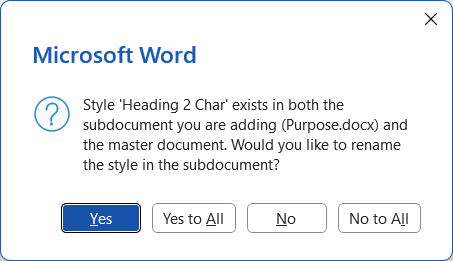
4. You can collapse or expand subdocuments for easier navigation.
NOTE: This feature may take some practice, back up your files before using it. It’s kinda fun once you get the hang of it. 🙂
2. Advanced Styles and Style Sets
Use case: Consistent formatting across large documents.
How to do it:
1. Go to Home > Styles.
2. Click the small arrow to open the Styles pane.
3. Modify or create new styles (e.g., Heading 1, Normal).
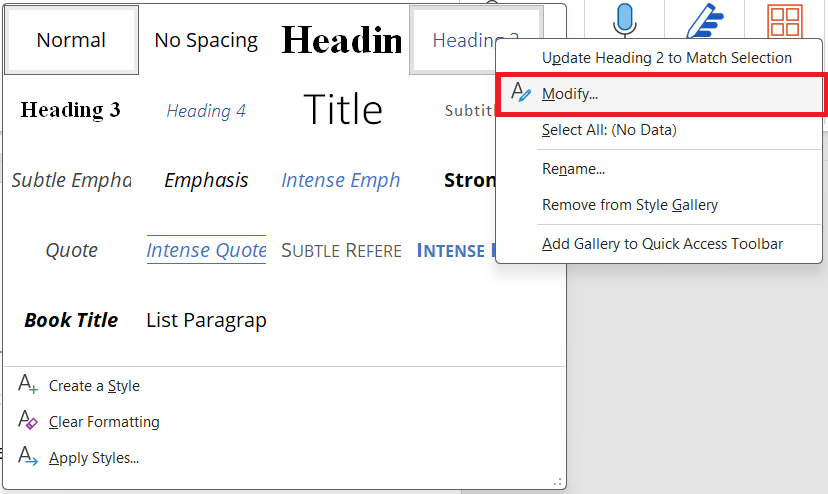
Where to Modify Styles
4. Apply styles consistently to enable features like View > Outline and automatic Table of Content (TOC) generation.
3. Table of Contents (TOC) and Indexing
Use case: Creating professional reports or manuals.
How to do it:
Part A Table of Contents:
1. Use heading styles (Heading 1, Heading 2, etc.).
2. Go to References > Table of Contents.
3. Choose a style or customize it. Test the difference between Automatic Table 1 or Automatic Table 2.
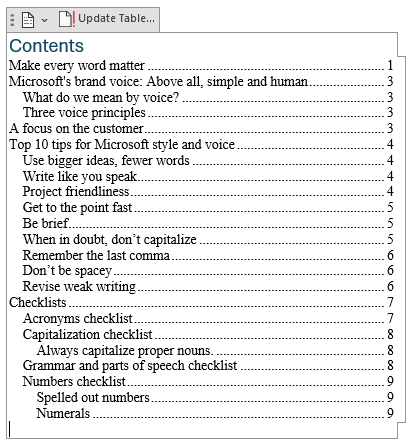
TOC With Line Spaces Set to Zero
Part B Index:
1. Select a word or phrase, then go to References > Mark Entry.
2. After marking entries, click Insert Index.
4. Mail Merge
Use case: Sending personalized letters, labels, or emails.
How to do it:
1. Go to Mailings > Start Mail Merge.
2. Choose the document type (e.g., letters).
3. Select Recipients from an Excel file or Outlook contacts.
4. Insert merge fields (e.g., Name, Address).
5. Finish & Merge to generate the final documents.
NOTE: If you plan to merge into Email, disconnect Outlook first. This way you can check your work before sending.
To Work Offline, start Microsoft Outlook on your desktop and in the top menu, click on Send/Receive. Next, in the Preferences section, click Work Offline. When you work offline, Outlook will not send, nor receive, even if the internet is connected. However, it will allow you to read, write, and organize mail messages, access Contacts, Caledar and all the other features inside Outlook. This is a lifesaver when using Mail Merge because nothing is worse than sending mail with mistakes. 😐
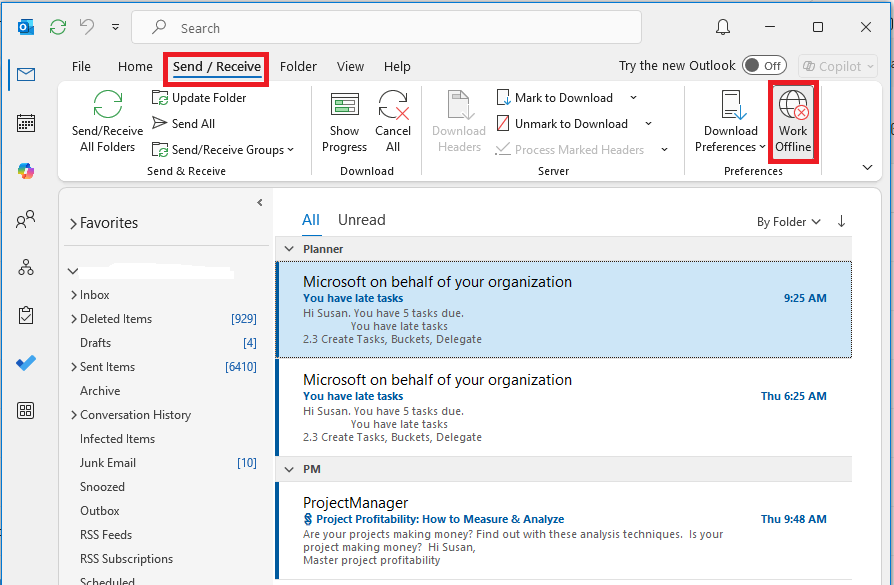
Classic Outlook Work Offline
5. Macros and VBA
Use case: Automating repetitive tasks.
How to do it: Document the steps so you know what to will do once the recording starts. Otherwise, you’ll be repeating the recording steps several times.
1. Go to View > Macros > Record Macro. Give it a name that makes sense as you will record many more once you get the hang of it.
2. Perform the actions you want to automate.
3. Go back to View > Macros > and click on Stop recording.
4. To make an edit in your recording, click on View > Macros, select the macro you want to look at and click Edit. This will open the VBA editor so you can change the script.
5. Practice and Test. Have fun!
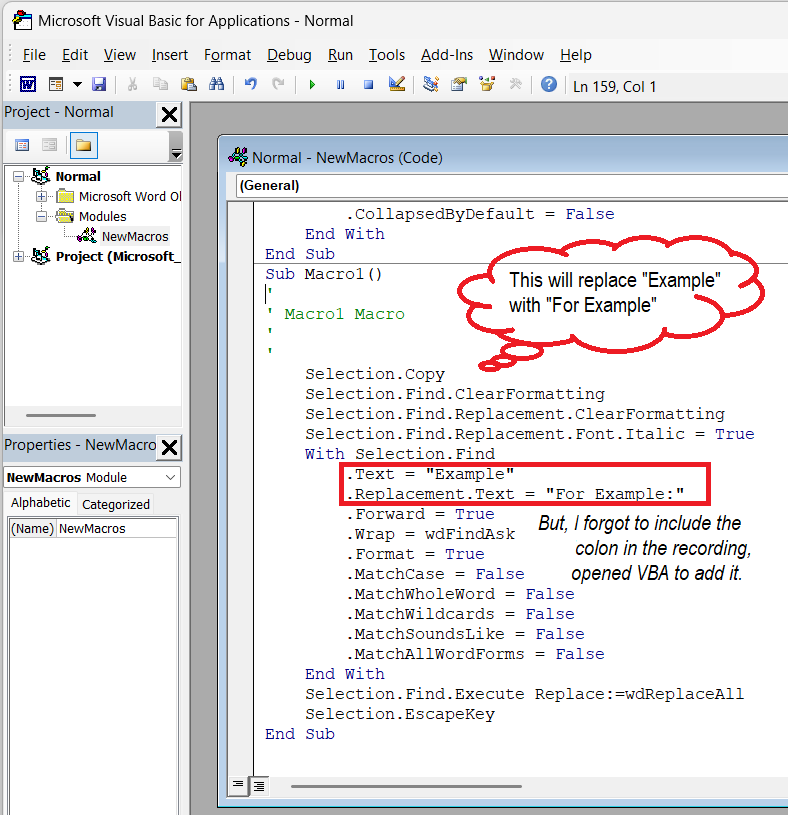
Edit Recorded Macros
6. Custom Templates
Use case: Standardizing document formats across teams.
How to do it:
1. Create a document with your desired styles, layout, and placeholders.
2. Save as a Word Template (.dotx) via File > Save As.
3. Share or reuse the template for consistent formatting.
This will work well for letterhead or commonly referenced documents. Once you open it, the name changes to “Document” so you can name it as you need it.
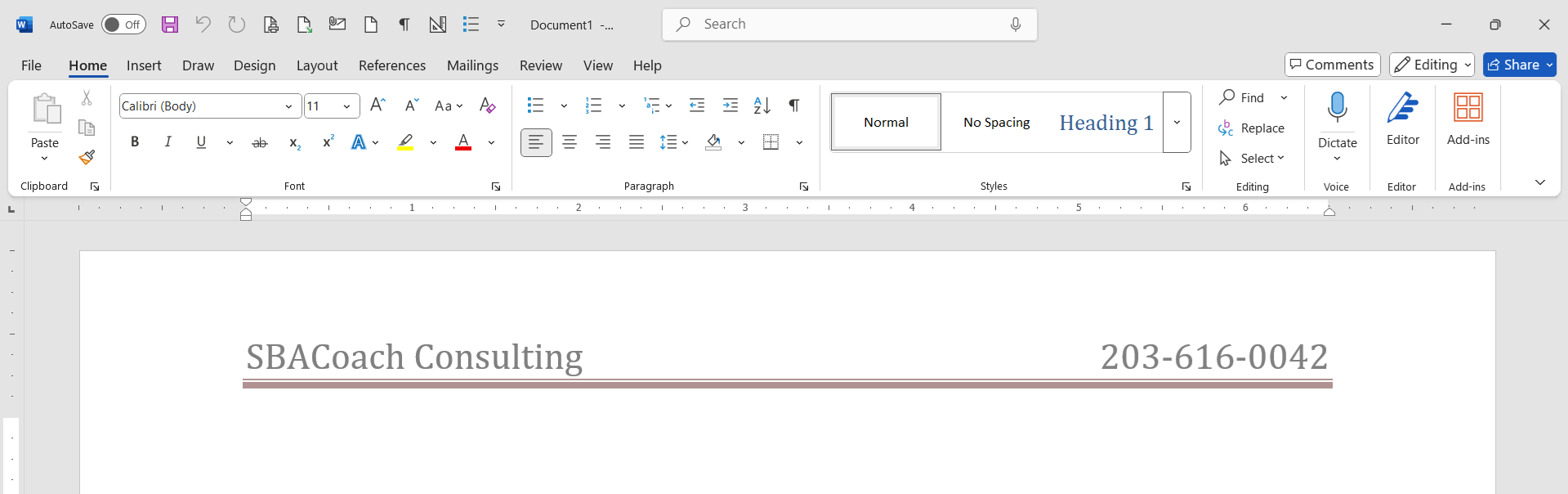
Template Letterhead
For your own PDF, click here for the file, Microsoft Style Guide. For the most up-to-date version, here is the link to the website for Microsoft Writing Style Guide
But wait, there’s MORE! Bonus for advanced writers ===> Word Help and Training.
Learn new skills and discover the power of Microsoft products with step-by-step guidance. Start your journey today by exploring our learning paths and modules.